


HSSGamepad connectivity issues happen when the controller loses its stable link to your phone, PC, or console. The most common causes are low battery, wireless interference, outdated firmware, and too many saved Bluetooth pairings. Most problems clear up with basic steps: charge the controller fully, forget and re-pair it in Bluetooth settings, move away from other wireless devices, and check for firmware updates. If it works on a second device but not your main one, the issue is with your setup rather than the controller itself. If it fails on every device after all fixes, you may have a hardware problem worth reporting to the seller.
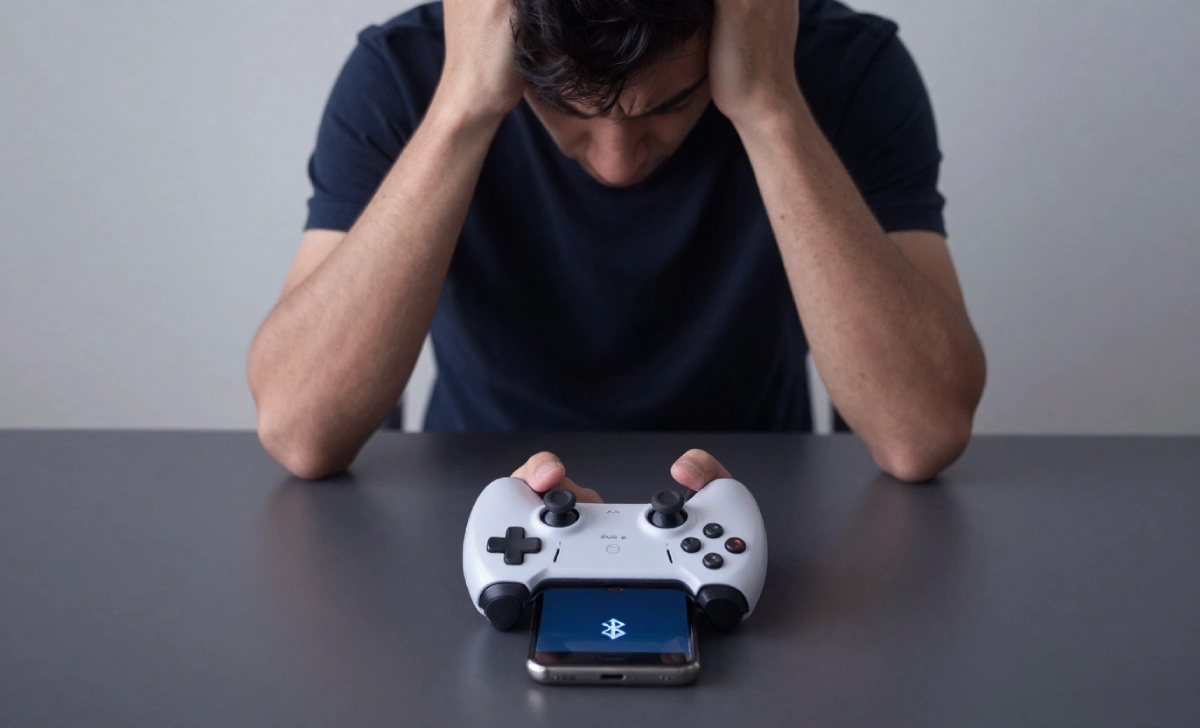
You’re mid-game. You’re about to win. Then your controller goes silent. No input, no response, just a frozen screen and real frustration.
HSSGamepad connectivity issues are one of the most common complaints from users across Android, PC, and cloud gaming setups. The controller is affordable and feels good in your hands, but the wireless connection can be unpredictable if you don’t know what’s causing the problem.
This guide walks you through exactly why these issues happen and what to do about them, step by step, without the guesswork.
What HSSGamepad Connectivity Issues Actually Mean
A connectivity issue means the communication between your controller and your device has been interrupted or never fully established. This can show up in a few different ways depending on your setup.
Common signs include the controller pairing but disconnecting after a few seconds, buttons not responding mid-game, input lag that makes the game feel broken, the controller not showing up in Bluetooth at all, or strange behavior even when connected over USB.
The tricky part is that Bluetooth is sensitive. It shares the 2.4GHz frequency band with Wi-Fi routers, headphones, smartwatches, and other wireless gear. When that band gets crowded, your controller is usually the first thing to suffer.
Why the Problem Happens in the First Place
Before trying any fix, it helps to understand what’s actually going wrong. Most HSSGamepad connection problems come down to a short list of causes.
Low battery is one of the most overlooked triggers. When the charge drops below 20 to 30 percent, the controller becomes unstable. It may still show as connected but will drop signals or respond slowly. This is especially sneaky with rechargeable batteries because there’s often no clear warning before they cut out.
Wireless interference is another major factor. If your gaming setup is near a Wi-Fi router, Bluetooth speaker, or several other paired devices, the signal gets disrupted. Even metal furniture can block or reflect the signal path.
Outdated firmware or drivers also cause strange behavior. Controllers have internal software, and if it’s not current, pairing failures and random drops become more likely. On PC, old Bluetooth drivers are a common reason the HSSGamepad stops connecting altogether.
Too many saved Bluetooth pairings create confusion for both the controller and your device. Phones and PCs remember old connections, and sometimes they try to reconnect to the wrong one automatically.
On Android, battery optimization settings can kill background connections unexpectedly, which cuts off the controller right in the middle of gameplay.
How to Fix HSSGamepad Disconnecting (Step by Step)
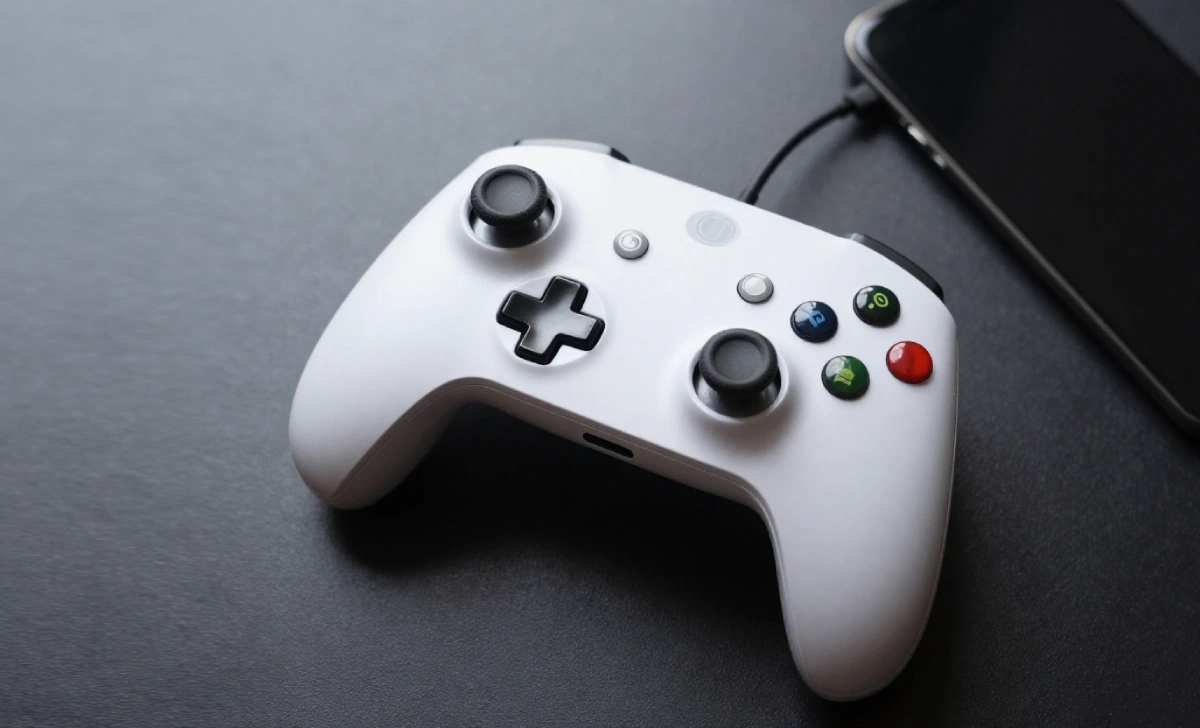
Let’s go through the fixes in the order you should try them. Start from the top and work down. Most people find their fix within the first three steps.
Step 1: Charge the controller fully and restart everything. Plug the HSSGamepad in until it hits 100 percent. Then, power off your phone or PC and restart it. Hold the home button on the controller for about 10 seconds to reset it. This clears minor glitches in both the controller and your device.
Step 2: Forget the device and re-pair from scratch. Go into Bluetooth settings on your device and remove the HSSGamepad from the paired list. Put the controller back into pairing mode by holding the Home button and the A button together for about 10 seconds. The indicator light should blink quickly when it’s ready. Then reconnect as if it’s a brand new device. This removes any corrupted pairing data that could be causing the HSSGamepad disconnecting issue.
Step 3: Reduce wireless interference. Move away from your Wi-Fi router, turn off nearby Bluetooth devices temporarily, and try pairing in a different room if possible. If the problem disappears in a new spot, interference was the cause.
Step 4: Check for firmware updates. Visit the HSSGamepad manufacturer’s site or check their companion app for any available firmware updates. On a Windows PC, open Device Manager and update your Bluetooth drivers from there. This step fixes a surprising number of lag and connection issues that nothing else resolves.
Step 5: Disable battery optimization on Android. Open Settings, go to Apps, find the HSSGamepad app if you use one, tap Battery, and set it to Unrestricted. This stops Android from cutting the wireless connection in the background to save power.
Step 6: Test with a USB cable. If your model supports wired mode, plug it directly into your device. A solid wired connection rules out wireless as the problem entirely. If it works fine over USB but fails wirelessly, the Bluetooth connection itself is the issue.
Step 7: Test on a second device. Connect the controller to a different phone or PC. If it works fine there, the problem is with your original device’s Bluetooth settings or hardware. If it fails on every device, the controller itself may have a defect worth reporting.
Device-Specific Tips Worth Knowing
The steps above cover the general process, but the details vary depending on what you’re playing on.
On PC, open Bluetooth and Devices in Windows Settings and check whether the HSSGamepad shows as connected or just paired. If it shows paired but not connected, remove it and start fresh. Also, check that your Bluetooth adapter isn’t sitting next to a USB 3.0 port, as this is a known source of wireless gamepad interference on Windows machines.
On Android, some phones limit Bluetooth performance when power-saving mode is active. Turn off battery saver before pairing and keep it off during gameplay. Also, confirm that the HSSGamepad app has location permission enabled, as Android sometimes requires this for Bluetooth discovery to work correctly.
On iOS, go to Settings, then Bluetooth, and check whether an old entry for the controller is sitting there with a “Not Connected” status. Delete it and re-pair from scratch. iOS handles Bluetooth pairing more strictly than Android, so starting clean usually solves it.
When It Might Be Time to Replace It
Most HSSGamepad connectivity issues are fixable. But there are cases where the hardware itself is the problem.
If the controller was dropped in water or has visible physical damage to the USB port or body, internal components may be failing. If it disconnects on every device you test it on after completing all the steps above, that points to a faulty Bluetooth chip or antenna. If buttons stop registering even over a direct USB connection, the problem is almost certainly internal.
In these cases, contact the seller or manufacturer. If the controller is still within its warranty period, you may qualify for a free replacement.
The Bottom Line
Fixing HSSGamepad connectivity issues rarely requires buying a replacement or digging through advanced settings. In most cases, a full charge, a fresh pairing, and some distance from other wireless devices is all it takes. Work through the steps above in order, test on a second device if you’re unsure, and check for firmware updates before giving up.
If it still fails after all of that, the hardware may be the issue. Contact your seller, check your warranty, and go from there. Gaming should feel straightforward. Most of the time, it will.
Frequently Asked Questions
Why does my HSSGamepad keep disconnecting randomly during a game?
Random disconnects usually come down to low battery, wireless interference, or a corrupted Bluetooth pairing. Start by charging fully, then forget and re-pair the device. If it keeps happening, try in a different location to rule out interference from nearby wireless devices.
How do I reset my HSSGamepad when it won’t pair?
Hold the Home button and the A button together for about 10 seconds until the indicator light resets. This puts the controller back into fresh pairing mode. Then remove any existing entry from your device’s Bluetooth list and reconnect from scratch.
Can firmware really cause connection problems, and how do I update it?
Yes, firmware issues are a real cause of HSSGamepad connectivity problems. Check the manufacturer’s website or their companion app for available updates. On PC, you can also update the Bluetooth driver through Device Manager under the Bluetooth section.
How do I know if it’s my controller or my device causing the issue?
Test the HSSGamepad on a second device. If it connects and works fine there, the issue is with your original device’s Bluetooth settings or hardware. If it fails on multiple devices after completing all troubleshooting steps, the controller itself is likely the problem.
Can I use the HSSGamepad while it’s charging?
Yes, most models support this. Testing it while plugged in is actually a good way to confirm whether the issue is battery-related. If it works fine over USB but acts up wirelessly, the wireless connection is where the problem lives.
Disclaimer: The troubleshooting steps in this guide are based on common user experiences and general Bluetooth troubleshooting practices. Results may vary depending on your specific device, HSSGamepad model, and software version. Always refer to your product’s official manual or support page for model-specific instructions.